


Yandex Browser with Alice AI
4.35.79K Reviews
App Specs
- Version
- Varies with Device
- Updated On
- License
- Free
- Downloads
- 100,000,000+
- Developer
- Direct Cursus Computer Systems Trading LLC
- Categories
- Personalization
- Platform
- Android, iOS
Screenshots





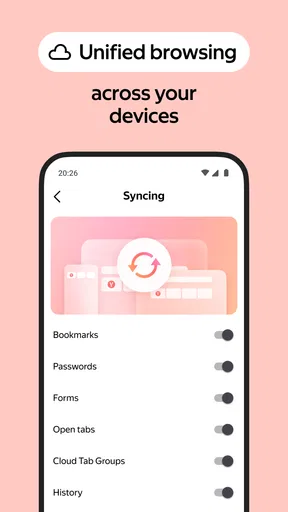

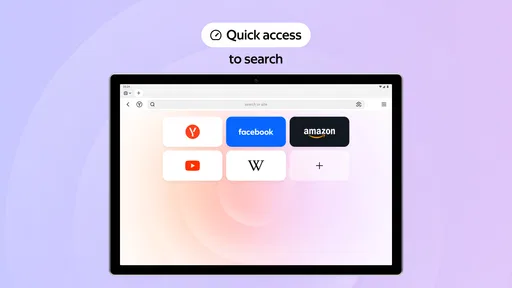
 Analysis by AppCompare
I tried Yandex Browser with Alice AI as a possible everyday replacement for a familiar mobile browser, and the experience made most sense when I treated it as two things at once: a browser for ordinary pages and a place to ask Alice quick questions. That combination is appealing, but it also means the first useful question is practical: will the browser fit the way you already search, organize tabs, and handle privacy? I would judge it by those routines rather than by the novelty of having an assistant nearby.
Where the first friction tends to show
Switching browsers is rarely difficult because of one dramatic problem. The awkward part is usually small habits: where a new tab opens, how a page is saved, which search box you reach for, and whether you remember to move important bookmarks. I recommend trying Yandex Browser alongside your current browser before making it your default. Use it for a few searches and a real browsing task, then decide whether its layout feels natural instead of changing every routine at once.
Alice is most useful when a question can be asked in plain language and followed up without opening several separate searches. That does not mean every question should go to an assistant. If you need to compare sources, check a specific page, or make a decision that depends on current details, I still open the underlying results and read them myself. Treat Alice as a convenient starting point, not a substitute for checking information that matters.
For a low-pressure first test, ask a simple question, then try a follow-up that depends on what you just asked. Notice whether the response helps you move forward or whether you would rather use a conventional search page. This is a better test of the assistant’s fit than asking one novelty question and assuming it will improve every browsing session.
Setup checks that make a fair trial
Before relying on a new browser, I check the basics: whether the pages I visit often open correctly, whether I can find my saved sites, and whether I understand where the browser’s search and tab controls are. If anything feels unfamiliar, I look through the settings rather than assuming the app is broken. A short setup session can prevent a minor layout surprise from becoming a reason to abandon it.
Yandex Browser is a free personalization app from Direct Cursus Computer Systems Trading LLC. It is rated for Everyone, and its release goes back to June 17, 2013. Its average rating is 4.4 from around 3 million ratings, with more than 100 million installs. Those figures suggest broad uptake, but they cannot tell you whether its particular interface or assistant suits your habits; a hands-on trial is still the useful test.
If you use extensions or other custom settings, check what is available in the version you install before planning a workflow around them. Browser features can differ between platforms and builds, so I avoid assuming that an option I have seen elsewhere will appear in exactly the same place on every device. Start with the controls you can see, and add complexity only when you have a clear reason.
Worth Reading Before You Choose

Flipboard Shows What News Apps Must Do Beyond the Feed

Switching to Android Auto Means Rethinking Your Driving Routine

Google Calendar Makes a Crowded Week Easier to Manage

Ludo King Makes the Most of the Minutes Between Plans

Baby Panda World Brings Quick Play to Modern Phones, but Its Game Library Feels Busy

ESPN’s Live Game View Makes Following Close Games Easier
Recovering a browsing workflow
When a page seems slow or fails to load, I first separate the browser from the connection. I try another site, then retry the original page; if several unrelated pages struggle, the network is a more likely place to look than a single browser setting. If only one page has trouble, I check whether it loads in another browser before changing a collection of settings that may not be involved.
The browser’s compression feature can be useful when a connection is sluggish, but I would not treat it as a cure for every loading problem. A page may still be delayed by its own service, a weak signal, or content that takes time to appear. When a page looks incomplete, refreshing once and checking the connection is a more sensible first move than repeatedly opening new tabs.
If a tab disappears or a site behaves unexpectedly, I recover in small steps: return to the page, check the address, and reopen only what I need. Keeping a few important pages in favorites is more dependable than leaving a large pile of tabs open and hoping it stays manageable. I also avoid changing privacy and extension settings all at once; changing one thing at a time makes it much easier to see whether a fix actually helped.
What the browser can and cannot fix
It is tempting to blame the browser whenever a site looks odd, but pages can fail for reasons outside the app. A temporary problem with the website, an unstable connection, or a change made by the site itself may affect more than one browser. Comparing the same page in another browser is a simple way to narrow down the cause without jumping to a conclusion.
Privacy tools and protection prompts are useful layers, not a promise that every online risk disappears. I still use care with unfamiliar pages and avoid entering sensitive details unless I am confident I am on the intended site. Likewise, an ad-blocking feature may change how a page appears; if a page’s controls or layout seem incomplete, checking it without the relevant blocking option is a reasonable troubleshooting step.
My view is that the app works best when you let it handle browsing conveniences while keeping your own judgement in charge. If the assistant’s answer is not enough, search more broadly. If a page is important, verify it. And if you prefer a browser whose workflow you already know by heart, there is no need to switch just because a different option has an assistant built in.
Alice AI and the everyday browsing experience
First things first, let’s talk about Alice AI. This is Yandex’s take on a smart assistant, and she’s integrated right into the browser. Need to find something quickly? Just ask Alice. She’s surprisingly intuitive and, dare I say, quite personable. I’ve asked her everything from the weather to the best sushi spots nearby, and she’s rarely missed a beat. Having Alice around feels like having a chatty friend who’s always up for a little banter.
What sets Alice apart is her ability to actually understand context. She’s not just spitting out search results; she’s engaging in a conversation. This makes for a user experience that’s both smooth and enjoyable. If you’re someone who loves multitasking, Alice will be your go-to for keeping things streamlined.
User Interface: Sleek and Speedy
The user interface of Yandex Browser is another highlight. It’s sleek, modern, and everything you’d expect from a top-tier browser. The Turbo Mode is a real game-changer, especially if you’re stuck with slow internet speeds. It compresses pages to speed up loading times, which means less time waiting and more time browsing.
The tab management is also pretty nifty. With features like tab stacks and a visual favorites bar, organizing your browsing experience is a breeze. I found myself effortlessly switching between tabs, which is perfect for someone like me who tends to have a million things open at once.
Privacy Features: Keeping You Safe
In today’s digital age, privacy is a big deal. Yandex Browser doesn’t skimp on this front. It offers robust privacy features like integrated DNSCrypt and a built-in ad blocker, which helps keep your data secure while offering a cleaner browsing experience.
One feature I particularly appreciated was the Protect Mode. Whenever you visit a potentially dangerous site, the browser kicks into Protect Mode, safeguarding your information and alerting you to any security threats. It’s like having a digital bodyguard who’s always on the lookout.
I still see these safeguards as helpful layers rather than a reason to stop paying attention. A warning deserves a pause, and a clean-looking page is not automatically trustworthy. For everyday shopping, account access, or anything involving personal details, I check the address and make sure I intended to open that site. That habit matters in any browser, including one with built-in protection.
Customization: Make It Your Own
If you like personalizing your tech, you’ll love the customization options. You can tweak everything from themes to extensions, making the browser truly yours. I played around with the settings, and it was fun to see how I could tailor it to fit my personality.
The extension support is extensive, too. Whether you want to enhance productivity or just add some flair, there’s likely an extension for that. I spent a good chunk of time exploring the options and ended up with a setup that felt just right.
My practical advice is to keep the first setup modest. Add only an extension you already know you need, then browse your usual sites before installing more. Extensions can be useful, but each one adds another choice to manage and can affect how a page behaves. If a site stops working as expected after you customize the browser, temporarily reviewing the most recent change is easier than starting over from scratch.
Choosing it for the right kind of browsing
This app is a strong candidate for someone who wants a browser that feels personal and is curious about asking an assistant questions while browsing. It can suit a person who often jumps between research, quick lookups, and saved pages, especially if tab stacks and a visual favorites bar match the way they think. It may also appeal if you want to try a different browser without paying for the app itself.
A realistic day might start with checking a couple of everyday questions through Alice, then moving into a longer search for a place to eat. I would use the assistant to get oriented, open promising results, and compare details on the actual pages before deciding. Later, if I were on a slower connection, compression could be useful; when I return to a topic, saved favorites or organized tabs could help me pick up where I left off. The benefit is less about one spectacular trick and more about making those small transitions feel convenient.
Compared with a familiar browser such as Chrome or Safari, the main reason to try Yandex Browser is its combination of Alice, customization, and compression-oriented browsing. The familiar alternatives may be a better choice if you already depend on their established routines or prefer not to learn a different interface. I would not switch solely for a claim of speed or security; I would switch only if Alice and the browser’s organization make tasks I actually do easier.
It is also not the right fit for everyone. If you want a browser to stay in the background and never engage with an assistant, Alice may add little value. If you rely on a particular extension or a carefully tuned workflow, test that setup first rather than assuming it will transfer unchanged. And if you prefer to evaluate every answer through conventional search results, you can still do that, but the assistant may not be the feature that makes this app worth choosing for you.
Final Thoughts: Is It Worth the Switch?
So, should you make the switch to Yandex Browser with Alice AI? If you’re looking for a browser that combines speed, security, and a bit of AI magic, then absolutely. It brings something fresh to the table with Alice and delivers a user experience that’s both intuitive and enjoyable.
For anyone ready to break away from the norm and try something new, give Yandex Browser a whirl. With its combination of smart features and robust performance, it might just become your new favorite way to surf the web. Plus, having a chat with Alice every now and then doesn’t hurt either!
My own recommendation is to make the decision after a short, realistic trial: use it for the searches, saved pages, and everyday sites you already depend on. Pay attention to whether its controls feel comfortable, whether Alice genuinely saves you a step, and whether the browser’s built-in tools suit your approach to privacy. If those parts click, it is an easy free app to keep using. If they do not, returning to your usual browser is a perfectly sensible choice.
Pros
- Fast and smooth browsing experience.
- Built-in ad blocker enhances privacy.
- Alice AI offers voice-assisted navigation.
- Turbo mode saves data on slow networks.
- Seamless integration with Yandex services.
Cons
- Limited customization compared to competitors.
- Alice AI may not support all languages.
- Some features require Yandex account.
- Occasional issues with website compatibility.
- Heavier on battery than some other browsers.
FAQs for Yandex Browser with Alice AI
What is Yandex Browser with Alice AI?
Yandex Browser with Alice AI is a web browser developed by Yandex, featuring an integrated AI assistant named Alice. The browser offers a smooth and secure browsing experience with features like Turbo Mode for faster loading times, and Alice AI, which provides voice-activated assistance for web searches, navigation, and more.
How does Alice AI enhance the browsing experience?
Alice AI enhances the browsing experience by providing voice-activated assistance that allows users to perform tasks hands-free. Whether you need to search for information, set reminders, or navigate through complex websites, Alice AI simplifies these tasks. It also learns from your interactions to offer more personalized and relevant assistance over time.
Is Yandex Browser with Alice AI available on both Android and iOS?
Yes, Yandex Browser with Alice AI is available on both Android and iOS platforms. It provides a consistent and optimized experience across devices, ensuring that users can take advantage of the browser’s features and Alice AI’s capabilities regardless of their preferred mobile operating system.
What are the key security features of Yandex Browser?
Yandex Browser prioritizes user security with features like active security protection against malicious websites, phishing attempts, and dangerous downloads. It also includes DNS Spoofing Protection and an integrated ad blocker to enhance privacy and reduce intrusive ads. These features work together to create a safer browsing environment.
Does Yandex Browser support extensions and add-ons?
Yes, Yandex Browser supports a variety of extensions and add-ons. Users can customize their browsing experience by adding extensions from the Chrome Web Store, allowing for enhanced functionality such as password management, ad-blocking, and much more. This flexibility makes it suitable for both casual and power users.


